
How to Chat with Your PDFs: A Guide to Interactive Reading
Learn how to unlock the full potential of your documents by using AI to ask questions, get summaries, and clarify complex concepts instantly.
PaperSight Team
PaperSight AI
Imagine if you could ask a textbook to explain a difficult concept, or ask a financial report to highlight the most risky investments. With PaperSight AI, this is now a reality. Interactive document reading is transforming how we consume and understand information. This comprehensive guide will show you how to master this new paradigm.
What is Interactive Reading?
Traditional reading is a passive activity. You scan text, try to remember key points, and move on. When you encounter something confusing, you might re-read the passage multiple times, search for explanations elsewhere, or simply give up.
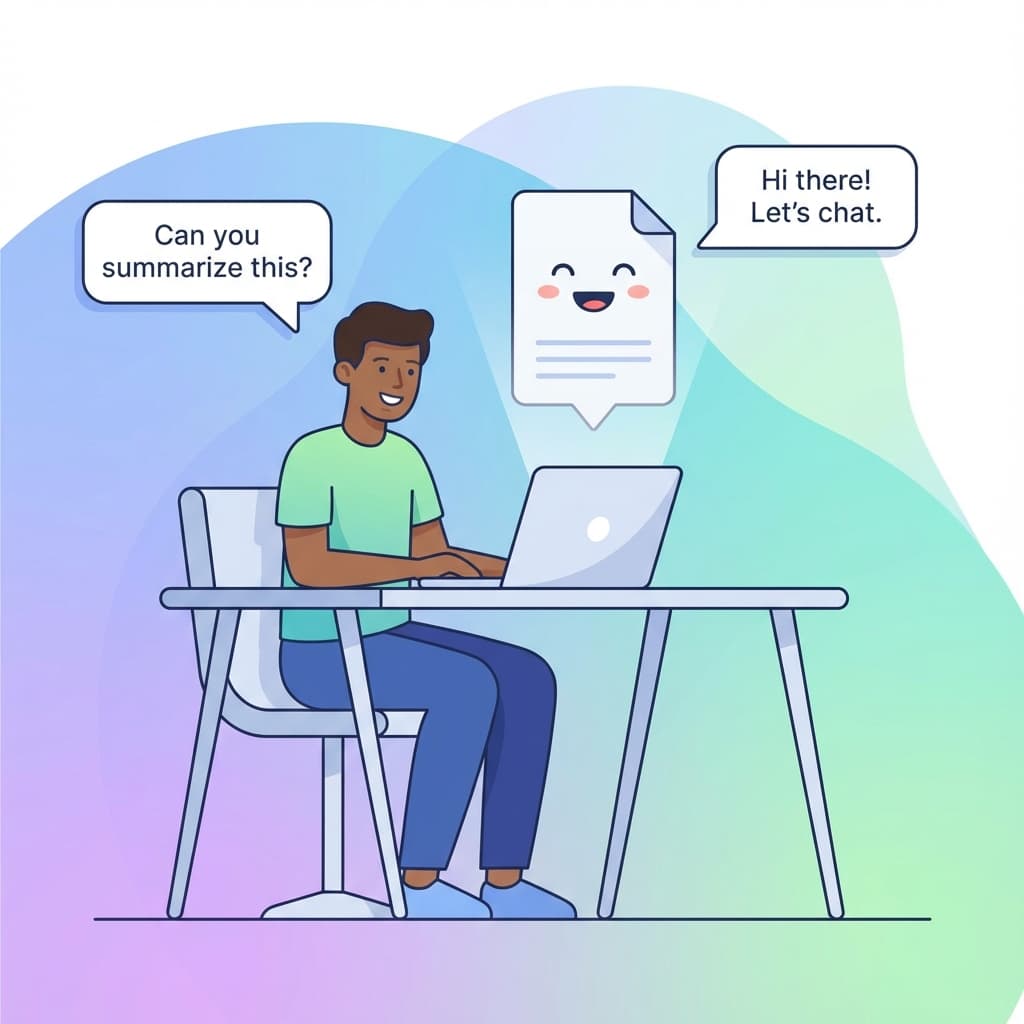
Interactive reading changes this dynamic entirely. Instead of passively consuming content, you engage in a dialogue with your documents. You ask questions, request clarifications, and receive instant, contextual responses.
The Shift in Paradigm
Interactive reading transforms documents from static text into dynamic knowledge bases that respond to your needs.
Getting Started with PaperSight AI
Let's walk through the complete process of using PaperSight AI for interactive document reading.
Step 1: Upload Your Document
The journey begins with uploading your PDF. PaperSight AI accepts a wide range of document types:
- Research papers and academic articles
- Technical documentation
- Business reports and proposals
- Legal documents and contracts
- Textbooks and educational materials
- Government publications
To upload:
- Navigate to your PaperSight AI dashboard
- Click the "Upload" button or drag and drop your file
- Wait for the document to process (usually 10-30 seconds)
- Your document is ready for interaction
File Quality Matters
For best results, upload native PDFs (created digitally) rather than scanned documents. If you must use scanned documents, ensure they have OCR (Optical Character Recognition) applied.
Step 2: Review the Automatic Summary
Once your document is processed, PaperSight AI provides an automatic summary. This gives you a quick overview of:
- Main themes and topics covered
- Key findings or conclusions
- Document structure and organization
- Important entities mentioned (people, organizations, concepts)
Use this summary to orient yourself before diving deeper. It's especially useful for quickly determining if a document is relevant to your needs.
Step 3: Ask Your First Question
Now comes the powerful part: chatting with your document. The interface is simple—type your question in the chat box, and receive an answer based on the document's content.
Great first questions to ask:
- "What is the main argument or thesis of this document?"
- "Summarize the methodology used in this study."
- "What are the key recommendations?"
- "Who are the main stakeholders discussed?"
Mastering Question Techniques
The quality of your questions directly impacts the quality of responses. Here are techniques to get the most out of interactive reading.
Be Specific
Instead of vague questions, provide context and specificity.
Less effective:
- "What is this about?"
- "Tell me about the results."
More effective:
- "What specific methodology was used to collect data in the user survey described in section 3?"
- "What were the three main findings regarding customer satisfaction?"
Use Follow-Up Questions
Treat the interaction as a conversation. If an answer raises new questions, follow up immediately.
Example conversation:
You: What is the main conclusion of this study?
AI: The study concludes that remote work increases productivity by an average of 13%, primarily due to fewer interruptions and flexible scheduling.
You: What were the limitations of the study that might affect this conclusion?
AI: The authors acknowledge several limitations: the study sample was limited to knowledge workers at technology companies, the measurement period was only 9 months, and productivity was self-reported rather than objectively measured.
Request Different Formats
Ask for information in the format most useful to you:
- "List the main points as bullet points."
- "Create a timeline of events described in this document."
- "Explain this concept using an analogy."
- "What are the pros and cons mentioned, presented as a comparison?"
Power User Tip
Ask "Explain this to me as if I were a [role/level]" to get explanations tailored to your expertise. For example, "Explain the statistical methods as if I were an undergraduate student."
Advanced Usage Patterns
Once you're comfortable with basic interactions, explore these advanced techniques.
Comparative Analysis
If you're reading multiple documents on the same topic, you can ask comparative questions:
- "How does this paper's methodology compare to other approaches in the field?"
- "What unique contributions does this study make?"
- "Are there any contradictions with common knowledge in this field?"
Data Extraction
Turn unstructured document content into structured data:
- "Extract all statistics mentioned in this report with their sources."
- "List all the references to previous studies with their main findings."
- "Create a table of all the products mentioned with their features."
Critical Analysis
Use the AI to help you think critically about the document:
- "What assumptions does the author make that might weaken the argument?"
- "What evidence would strengthen or weaken these conclusions?"
- "Are there any logical fallacies or biased statements in this document?"
Educational Support
Transform complex documents into learning experiences:
- "Create flashcard-style questions from this chapter."
- "What are the key terms I should understand from this document?"
- "Quiz me on the main concepts from this paper."
Best Practices for Interactive Reading
1. Start with an Overview
Before diving into specific questions, get a sense of the whole document:
- Request a summary
- Ask about the document structure
- Identify the main themes
This context helps you ask better questions later.
2. Verify Important Information
While AI responses are highly accurate, always verify critical information, especially for:
- Statistical figures
- Direct quotes
- Technical specifications
- Legal or medical information
Important
AI is a tool to help you find information faster, but it shouldn't replace careful reading for high-stakes decisions.
3. Keep a Record
Save important insights from your interactive reading sessions:
- Export key Q&A exchanges
- Copy important summaries
- Note the document sections referenced
4. Combine with Traditional Reading
The most effective approach combines interactive reading with traditional deep reading:
- Use AI to quickly screen documents for relevance
- Get AI summaries to understand structure and main points
- Read key sections in full for deep understanding
- Use AI to clarify confusing passages
- Use AI to synthesize across multiple documents
Common Use Cases
For Students
- Studying for exams: "What are the most important concepts I should know from this chapter?"
- Writing papers: "What does this source say about [topic] that I can cite?"
- Understanding difficult material: "Explain [concept] in simpler terms."
For Researchers
- Literature review: "What is the main contribution of this paper to the field?"
- Methodology comparison: "Describe the statistical methods used in this study."
- Gap identification: "What questions does this paper leave unanswered?"
For Professionals
- Contract review: "What are the key obligations and deadlines in this contract?"
- Report analysis: "What are the main risks identified in this report?"
- Technical documentation: "How do I implement [feature] according to this documentation?"
Troubleshooting Common Issues
"I'm not getting relevant answers"
- Try rephrasing your question with more specific terms from the document
- Ask broader questions first, then narrow down
- Specify which section of the document you're asking about
"The answer seems incomplete"
- Ask follow-up questions for more detail
- Request the answer in a different format
- Ask for the specific passages where information was found
"I'm not sure if the answer is accurate"
- Ask for the source: "Where in the document does it say this?"
- Cross-reference with your own reading of that section
- Ask the same question in different ways to verify consistency
The Future of Reading
Interactive reading is just the beginning. As AI technology advances, we'll see:
- Multi-document conversations - Chat with entire libraries at once
- Real-time collaboration - Share interactive reading sessions with colleagues
- Personalized learning pathways - AI that remembers your knowledge and adapts
- Visual understanding - AI that can answer questions about charts, figures, and diagrams
Get Started Today
The best way to learn interactive reading is to practice. Upload your next document to PaperSight AI and start a conversation. You'll be surprised how quickly it transforms your workflow.
Conclusion
The ability to "chat" with documents represents a fundamental shift in how we interact with information. By mastering interactive reading with tools like PaperSight AI, you can:
- Process information faster
- Understand complex material more deeply
- Extract more value from every document you read
- Focus your mental energy on critical thinking rather than information retrieval
Start with simple questions on your next document, and gradually explore the advanced techniques we've covered. Interactive reading isn't just a productivity hack—it's a new way of learning and working that will only become more important in the years ahead.
Welcome to the future of reading. Your documents are ready to talk.
Written by
PaperSight Team